The Five Fields Autofill Gets Wrong — and the Ten-Minute Audit That Saves Your Entry
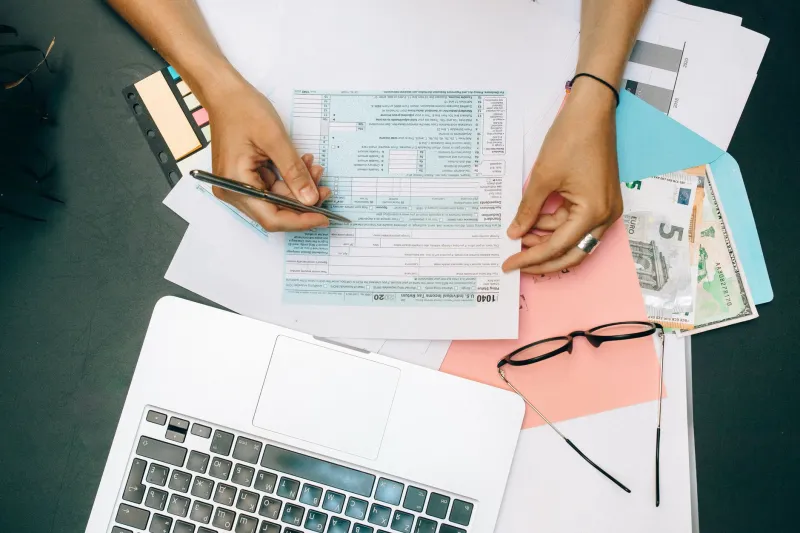
I spent most of a Saturday last spring chasing a confirmation email that never arrived. The form had said "Thanks, you're entered." The sponsor's rules said entries with an invalid ZIP were void. My browser, helpful as ever, had filled in the ZIP from the apartment I moved out of four years ago. Nothing crashed, nothing warned me. It just quietly slid my entry into the trash.
That's the thing about autofill: it's not broken. It's confident. And confidence is dangerous on a form that a sweepstakes administrator will later read by machine.
This isn't an argument for typing everything by hand forever. Typed fields get fat-fingered too, and doing fifty entries a month manually is its own kind of mistake. The fix is narrower and a lot less glamorous — know which five fields your browser is most likely to get wrong, and check those five before you submit.
Why the browser gets this stuff wrong in the first place
Autofill is a guessing engine trained on your history. It matches field labels to saved profile data, and the matching is loose by design, because most websites label things the same sloppy way. "Address line 2" might mean apartment number on one form and a company name on another. "Phone" might want ten digits, or eleven with a country code, or ten digits broken by dashes, or the same thing with parentheses because a template from 2009 never got updated.
The browser doesn't know your entry is going to be validated against a legality rule. It just wants the box filled. You're the one who cares about the outcome.
Field one: the address that still belongs to your old place
This is the big one, and it's a data hygiene problem more than a browser problem. Chrome, Safari, Edge, and Firefox all keep multiple saved addresses, and they'll happily offer you the one you used most recently — which may not be the one you live at now.
Where it bites: a stale ZIP, a stale street number, or a state that changed when you crossed a river. Sweepstakes rules routinely require an accurate mailing address, and a mismatched city/state/ZIP combination is one of the easiest things for a fulfillment database to flag as invalid.
Open your browser's settings, find the addresses and payment section, and delete every saved address you don't currently use. Not edit — delete. An old address sitting in the list is a loaded gun pointed at your next entry.
Field two: the phone number that won't fit
Phone fields are the most format-fragile boxes on the web. Some accept ten digits only and reject dashes. Some demand the country code. Some use a masked input that swallows the first digit when you paste. Some want an extension, and others will accept one and then fail validation because the sponsor never expected it.
US readers get an extra wrinkle: if the field silently truncates to ten characters, a number typed as +1 (555) 555-0142 turns into garbage.
When you encounter one of these, don't fight it. Clear the field, type plain digits, and see what the form reconstructs. If it reformats to (555) 555-0142 on its own, you're done. If it fights back, check whether the field is optional — many giveaway forms only need the phone for winner notification, and plenty of them don't require it at all.
Field three: the email alias that looks like a duplicate entry
Plus-addressing is a genuinely useful habit. [email protected] routes straight to a folder and keeps your inbox sane. It's also the fastest way to get every entry you submitted thrown out.
Sponsors deduplicate entries by normalized email address. That normalization varies: some strip everything after the plus, some strip dots from Gmail addresses, some don't normalize at all but run a fuzzy match. The rules almost always say one entry per person, and an administrator looking at twelve near-identical addresses from the same human has a very obvious call to make.
Pick one address and use it everywhere. If you want separation, get a second real mailbox for giveaways rather than a hundred aliases of the same one — the separate-inbox approach actually works, and it doesn't look like a bot farm.
Also worth a glance: the browser sometimes autofills a different saved login than the one you meant, especially if you keep a personal and a work account on the same site.
Field four: the state field that isn't a text box
Dropdowns are where autofill and reality part ways. A select menu that autofill can't read properly will show blank, show the wrong state, or show your state's full name where the form expects a two-letter code.
The ugly versions of this problem: a dropdown with no default selection that silently submits as the first alphabetically listed state, and a form that reads your ZIP and rewrites your city — usually correctly, occasionally to a neighboring municipality with the same ZIP prefix.
Always look at the state field with your own eyes. If it's a menu, confirm the selection stuck. If it's a text box, use the two-letter code unless the form asks otherwise.
Field five: your name, as the government knows it
Nickname in the First Name box, legal name on your ID, and a suffix field that catches "Jr" when it was meant for something else — this mismatch is the reason people win and then have trouble claiming, because prize paperwork has to match a real person.
Save one version of your name in autofill: first and last as they appear on your ID. Leave the nickname for your email signature.
The ten-minute autofill audit
Once a quarter, at minimum:
- Open your browser's saved addresses and delete anything not current.
- Confirm the default address has the right ZIP and state.
- Check saved phone entries for duplicates and formatting.
- Review saved emails and remove aliases you've used on giveaway sites.
- Confirm your saved name matches your ID.
Screenshot the corrected profile. It takes thirty seconds and saves you from wondering later whether you actually fixed it.
How to test without tripping the one-entry rule
Here's the part people get wrong. If you want to see how a form behaves, don't submit it twice to find out. Read the official rules first — the entry limit is in there, and it's usually phrased as one entry per person, per household, or per email address for the entire promotion period.
Instead:
- Fill the form, then stop before submitting and inspect what autofill produced.
- Use the browser's own preview — clicking a field and tabbing through shows you exactly what's stored.
- On forms that allow edits after submission, fix a bad field once and log what went wrong.
- On forms that don't, treat the first submission as final and get it right the first time.
A duplicate submission over a mistyped ZIP isn't a fix. It's a rule violation with extra steps.
A small routine that beats a perfect browser
The uncomfortable truth is that autofill will keep being convenient and occasionally wrong, and no settings menu fully solves that. What solves it is a twenty-second pause on the five fields that carry the most risk: address, phone, email, state, and legal name.
Check those, tab through the rest, and submit once. The entry you save might be the one that actually wins.